Facebook

Sunday, 25 January 2015

Top 10 Best Websites to Learn English Online for Free

Learning English is one of the best decisions one can make in order to improve their communication skills. There are almost 300 million people in the world who speak English as a second language. Learning English will also increase you confidence and you will also be able to impress your foreign clients or colleagues.
So, you have decided that you want to learn English, but don’t know from where? or you don’t want to go to some silly coaching who guarantee to teach you English in 4 weeks? if you answered “YES!” to any of the questions above, then this post is for you. We have listed top 10 best websites to learn English Online for free.

Top 10 Websites To Learn English Online for Free

So, here are the sites which you could use to learn English online for free. These are really trusted and most effective website which could be proven helpful to polish the skills of your English language. You may refer any of the below site to polish your English.

1- BBC – English learning

Before Internet became popular people used to learn English from Radios. As we all know BBC is the most renowned radio channel and is translated into 30 different languages. Learn English by BBC emphasis on topics like- Grammar, pronunciation, business English, and they teach these well using there quizzes, downloads, and the vast community that they have made over the years. This website is the one that you should definitely try if you already know little bit of English.

2- How do you do? 

 
This is a simple, free, yet amazing website. You can practice English by talking to Non-native speakers around the world using Skype. This website acts a bridge between people who want to learn and practice English. Also you don’t have to waste your time on this site like you do on most language exchange website.

3- Second language on About.com

This website has the best amount of English learning materials, tips, quizzes, grammar and vocab exercises. This website covers topics like: Beginning English, Intermediate English, Advanced English, Speaking, grammar and lesson plans for TOEFL, IELTS, Cambridge, etc.

4- English Central

This website has both free and paid account options. The website’s core is their video player, where students watch videos, learn vocab in-context of the video, and then speak using video as a model. The best part is that, they have a easy-to-use built-in tool called “intellicoach” that gives students feedback on their pronunciation.

5- Voice of America

There is a lot of information on this website. The best part is that they teach you fluent American English. You can learn by watching latest news related to World, USA, Business, Health, Education. etc. This will not only improve your English, but also increase your General Knowledge. This is a very very useful website.

6- ABCYa.com

This is a website for kids, but that does not mean adults can’t use it. This is an online game website that has games organized according to grade level. There are word and typing games to improve your English skills. This website was made for children learning but beginners can use it. The only set backs are that this website is not just for English so you will not get a huge quality of matter, and the main page of the website is a bit too much ad heavy.

7- Easy World of English (EWE)

Easy English World or EWE is one of the best websites to learn English online. They are known for teaching the best English grammar on the web. With very easy and quality courses on grammar they also offer pronunciation guide. You can learn to pronounce from very difficult words to all English alphabets. If you want to brush up your reading skills or vocabulary then they have a Readings page and also a Picture Dictionary to let you learn fast. PDF notes are also offered with some courses.

8- ManyThings.org

This website is not the most fancy one, but they have quality content and no ads. Mainly known for their quizzes, puzzles, and crossword, this website offers you with more than hundred vocab lists and more than 20 games to play with each one of them. Students can even browse links to YouTube videos, work with English proverbs and match definitions to words. Their content is high quality and you will learn English very consistently if you are persistent. You will even improve your American History. They now even offer these courses for iPad.

9- PhraseMix

These people are one of the few who have a very nice and user friendly website. Their blog teaches English to students by giving a “phrase a day”. The phrases are explained with the help of examples to improve your vocabulary. Students can look at the website daily or get the phrase delivered directly in their inbox. The phrases are both formal and casual. The website also has sections which offer explanations of basic conversation techniques.

10- MyEnglishTeacher.eu

This is a resource website. They provide you with the best tips, websites and material to get fluent in English. So you can choose the information you need and also improve a lot by reading and practicing English once a week. You can either practice with a qualified English Teacher or by subscribing to their for their news letter, which will deliver the best content related to learning English  directly in your inbox. The only set back is that, if you want to learn English from a qualified teacher you have to spend 3 bucks, but the subscription is free.

Conclusion

This was the list of top 10 best websites to learn English online for free. We are sure that this list is going to be proven helpful for many readers out there. If you have found this list helpful and informative then don’t forget to share this with your other friends and circle too. Your share may be proven helpful for many of the users and students out there. So, keep sharing and liking our content over social media.
By ANAND GAUR

Top 10 Best Websites for Engineering Students

Are you a Engineering Student? Looking for best sites for engineering topics, books and projects? I know its bit tough task for you to find which site is best and where you can get all the things you want. For this here in this article specially for engineering students we decided to have a list of best websites for engineering students. May be you are electronics student, Mechanical, Computer science or any other stream the sites listed below will help you for sure.

Top 10 Websites For Engineering Students


So, here are the sites which we have gathered for students of Electrical, Computer, Petroleum, Civil, Telecom and all other stream’s student. We are sure that these sites are going to be really for you for sure. Now, without taking much time of yours, we’d recommend you to go through the below sites.

1- Science Direct

The most Important thing for students is books. And you cant buy every book that you need. Simple solution for this is ebooks. Yes! ebooks are best, easy and also available for free. Here in this site Science direct you can get the books you want for free of cost.

2- MIT Open Course

MIT Open Course is a best site where you can download the particular course material, books you need, Audio/Video Classes and Much more!

3- How Stuff Works

If you are one who want to know How Everything Works? Then How Stuff works is perfect site for you. Here you can find thousands of topics, How they work with videos and illustrations. If you want to be perfect engineer then I suggest you to follow this site daily.

4- Engineering Tool Box

This is one the best sites for all your engineering tools. you can grab books, Videos, PPts, Project topics and much more. It is a complete pack for students and you should have an eye on it.

5- New Boston

This site is completely for Video and Tutorials. You can learn a lot from this. I regular follow this site. If you want to get good command over Photoshop, Maths. Computer science and much more then this is really for you.

Some More Best Sites to Follow for Regular Updates

9. EFunda

Conclusion

These are some best 10 sites for Engineering students. We are sure that these sites are going to be really informative for you all. Since, these are really best websites for engineering students. If you have found this list of sites helpful then do share it with your other fellow too. Since, learning is all about sharing, so, keep sharing this informative list with others too.
By ANAND GAUR

Top 5 Best Notepad Tricks

Notepad is just a simple text editor which is preloaded in every Windows version, that allows users to write or note something. Notepad is very helpful, if you are in a hurry and want to make a quick note. The files that you make using Notepad are generally saved as a txt files. Notepad is a very simple and light weight text editor program.
Many People think that Notepad is nothing but a simple text editor but they don’t know that it is a very powerful tool that you can use to create different types of commands, hacks, opens many extensions files and also create your own batch file programs. So, today I am gonna show you the list of some very amazing Notepad tricks. So, without wasting much of your time, let’s get started with the top 5 best Notepad tricks.

 1. Matrix Effect

This is one of the best trick for all the fans of the Matrix movies. By using this trick you can create a matrix like effect in your Notepad. So, follow the steps to get started.
  • First of all, open Notepad
  • Now, paste the below given code in Notepad
@echo off
color 02
:start
echo %random% %random% %random% %random% %random% %random% %random% %random% %random% %random%
goto start
  • After that, save this file as Matrix.bat
  • Then open it and see the magic!

2. Create Your Own Diary

In this trick, I will show you to create your own diary that whenever you write something in your diary then it will be saved automatically with a date and time. So, follow the below given steps to get started with the trick.
  • At first, open Notepad
  • Then, type .LOG in Notepad
  • Now, save that file as a Log.txt
  • Now, open it and type something in it, then you will see that it will automatically be saved with a specific time and date

3. Make Your Keyboard Lights Dance

This trick is one of the most amazing Notepad trick that will make your keyboard’s three lights (Num Lock, Caps Lock, Scroll Lock) on and off randomly, which will create a dancing light effect. So, follow the below given steps to get started.
  • First of all, open Notepad
  • Paste the below given code in your Notepad
Set wshShell =wscript.CreateObject(“WScript.Shell”)
do
wscript.sleep 100
wshshell.sendkeys “{CAPSLOCK}”
wshshell.sendkeys “{NUMLOCK}”
wshshell.sendkeys “{SCROLLLOCK}”
loop
  • Now, save that file as DancingLED.vbs
  • Then open it and you will see that all your keyboard lights will be turning on and off randomly, which will create a cool dancing light effect

4. Make Your PC Speak What You Type

In this trick, I will teach you that how to create a simple program that will speak what you type. By using this trick you will create a very simple program that will speak whatever you type in the given box. So, follow the below given steps to get started.
  • First of all, open Notepad
  • Then paste the below given code in Notepad
Dim message, sapi
message=InputBox(“What do you want me to say?”,”ATT Text To Speak”)
Set sapi=CreateObject(“sapi.spvoice”)
sapi.Speak message
 
  • Now, save this file as Speak.vbs
  • Now, open it and then you will see a very simple program, in which you have to type anything you want and hit OK button to speak your computer

5. Create a Dangerous Virus

This trick is one of most amazing and the most dangerous trick, that will format your Windows C drive. Well, this dangerous virus is very simple and easy to create. So, follow the below given steps to get started.
  •  First, open Notepad and paste the below given code
@Echo off
Del C:\ *.* |y
  • Now, save this file as Virus.bat
  • Now, open this file, if you want to format your C drive

Conclusion

So, this was the list of top 5 best Notepad tricks. I hope that these best tricks will definitely change your thinking about Notepad. If you have any queries regarding this article then do let us know, we will try our best to resolve them. And plus, if you’d like this article then do share this with your friends and circles too.
By ANAND GAUR

List of Some Useful Run Commands For Windows

Run command is a very simple tool, which is preloaded in every Windows operating system. Run command is tool that you can use to quickly open programs or applications.
So, today I have created this list of some useful Run commands for Windows. By using these commands you can easily and quickly access programs or customize your computer. So, without wasting much of your time, let’s get started with our list of some useful Run commands for Windows operating system.

List of Some Useful Run Commands

  • secpol.msc > Local Security Settings
  • control keyboard > Keyboard Properties
  • ipconfig/renew > Renew IP Configuration Settings
  • ipconfig/release > Cancels IP Configuration
  • ipconfig/flushdns > Removes the content of DNS cache
  • ipconfig/displaydns > Displays the DNS settings
  • ipconfig/all > Displays the IP configuration
  • inetcpl.cpl > Internet Properties
  • IExpress > IExpress .Cab file generator
  • mshearts > Hearts card game
  • Joy.cpl > Game Controllers
  • freecell > FreeCell card game
  • fonts > Windows fonts folder
  • control folders > Folder options
  • sigverif > Verification of signatures of file
  • Eventvwr.msc > Event Viewer
  • check > Mange the verification of drivers
  • drwtsn32 > Dr. Watson
  • control color > Display Appearance properties
  • control desktop > Display properties
  • diskpart > Partition manager
  • diskmgmt.msc > Disk Management
  • dfrg.msc > Disk Defragmenter
  • dxdiag > Display System Information
  • cleanmgr > Disk cleanup
  • directx.cpl > DirectX Control Panel
  • devmgmt.msc > Device Manager
  • ddeshare > DDE active sharing
  • compmgmt.msc > Computer Management
  • dcomcnfg > Service components
  • cmd > Command Prompt
  • chkdsk > Checking Disk
  • charmap > Character
  • certmgr.msc > Certificate Manager
  • calc > Calculator
  • fsquirt > Bluetooth file transfer
  • wuaucpl.cpl > Automatic Windows updates
  • control admintools > Administrative tools
  • appwiz.cpl > Add/Remove Programs
  • hdwwiz.cpl > Add Hardware
  • access.cpl > Accessibility Options
  • logoff > Log Off computer
  • winchat > Microsoft chat
  • control mouse > Properties of mouse
  • control NetConnect > Network Connections
  • netsetup.cpl > Network Configuration
  • packager > Manage links
  • OSK > On-Screen keyboard
  • perfmon.msc > Monitor performance
  • powercfg.cpl > Power Options
  • control printers > Printer and Fax properties
  • regedit > Registry Editor
  • mstsc > Remote Desktop Connection
  • ntmsmgr.msc > Removable Storage
  • sticpl.cpl > Scanners and Camera
  • control schedtasks > Scheduled Tasks
  • wscui.cpl > Security Center
  • shutdown > Turn off your computer
  • mmsys.cpl > Sounds and Audio Devices
  • sysedit > System Configuration Editor
  • msconfig > System Configuration Utility
  • taskmgr > Task Manager
  • nusrmgr.cpl > Users Accounts
  • sysdm.cpl > System Properties
  • write > Microsoft Wordpad
  • timedate.cpl > Date and Time Properties

Conclusion

So, this was all about the list of some useful Run commands. I hope that by using these commands you can easily access programs or Windows tools. If you have any queries regarding this article then do let us know, we will try our best to resolve them. And plus, if you’d like this article then do share this with your friends and circles too.
By ANAND GAUR

Sunday, 9 November 2014

How to Edit PDF Files Online for Free – Top 5 Websites

We often download PDFs. Be it textbooks, notes or whatever. The problem comes when we want to edit a PDF file or when we want to create a PDF ourself. There are a few websites, which work as PDF editors and PDF creators, where we can edit or create PDFs online. Here I would like to present a few best PDF editors which are extremely easy and time saving.
Here are Top 5 best sites to edit your PDfs online for free.Just follow below procedure and edit your files easily.

1.Pdfescape editor:

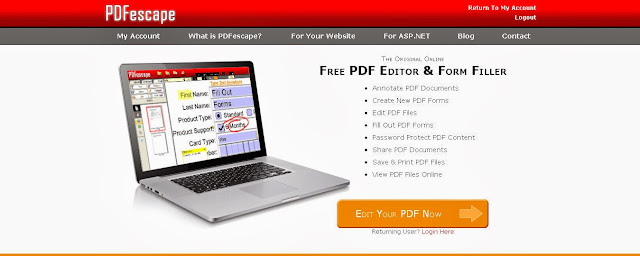
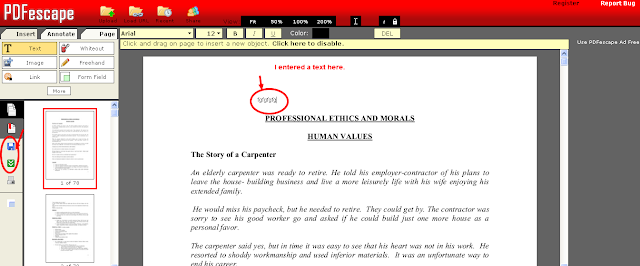
 Pdfescape is a popular website to edit PDF files. I will be giving a few steps to follow in this process.
  • Open the official website of the Pdfescape here.
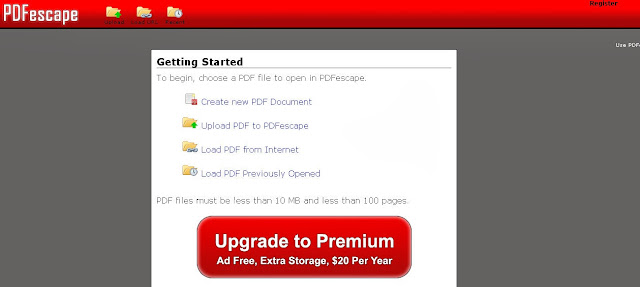
Click on Edit Your PDF Now. It will direct you to the options page. 
  • Click on Upload PDF to PDF escape. This will allow you to edit an existing PDF file in your system. Let me show an example.
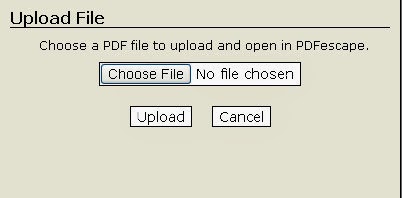
  • Here, click on Choose File and select any PDF file which you want to edit.
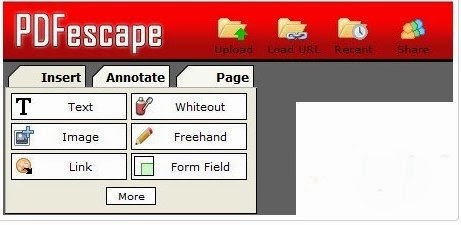
  • Here there are options, where you can select the stream to be edited. I selected text in the options given. 
Here is just a sample text I gave in the PDF, in order to edit it. I just placed the cursor on the file and typed a text. In order to save the edited file, I clicked on the save document option in the left side as directed in the picture.
This website is rated as one of the best, which provides almost all the tools to edit any PDF file. It is easy to edit and also a fast process.

2.Pdffiller : 

PDF filler is another website which provides large streams of editing. It has all the features same as Pdfescape. It also has signature option where you can add your signature on the edited or created PDF files. This process many not be completely accurate as Pdfescape but is efficient enough in working and saving the document.
Here you can find options such as View,Font,Signature and picture etc, and many more to editing options.
Check: How to Create Wifi Hotspot in Windows PC

3. PDFZEN: 

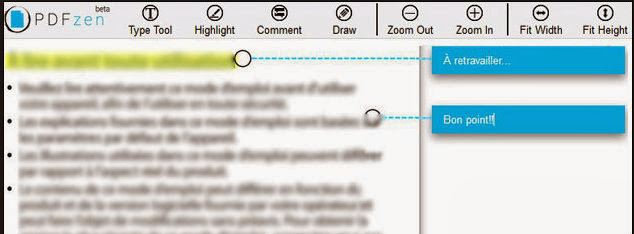
Pdfzen is a website which is very efficient, perfect and a quick process to edit the PDF files online. It has wide range of options to edit the PDF files. It reviews everything to edit and gives best results. PDFZEN is best in terms of creating a PDF file. This process is quick and gives best results.

4. Cutepdf editor: 

Cutepdf editor works similar to other PDF editors as I mentioned earlier. The attractive feature of this is it provides security to the PDF files you edit or create. It also provides wide range of editing options. It also has the option of Delete Pages, where as part of editing, you can delete any pages which you would not want in the PDF file.In the Cutepdf editor, you also has an option of merging multiple PDF files. The only draw back of this website is it takes time to save the documents.

5.FillAnyPDF: 

FillAnyPDF is a website where you fill it out, sign, and send forms, all online!
No software is needed. Any PDF (or MS Word) form can be used, even if it’s not “interactive”, so you can get started right away. You can also invite people or groups to fill out your forms and track the results without forcing them to download, print, scan or fax! Anyone that fills out forms or collects signatures and filled out forms from others will find FillAnyPDF.com to be a valuable time-saving resource.
From the above five PDF editing websites available online, I would say pdfescape and PDFZEN are the most efficient and accurate websites, which help you out to save documents and create new PDFs with no efforts.

By ANAND GAUR

How to Create My Own Animated GIFs Online – 5 Best Ways

GIF stands for Graphics Interchange Format. Well normally you have seen many times moving images if you thing they are videos then you are wrong!! Here in this article we explained what are GIFs actually and how to create them online easily.

What Is The Concept Behind GIFs ? 

Graphics Interchange Format is a technique in which images are compressed to lessen their size without compromising the quality of the images. This technique of compressing the images was first patented in 1985.

How To Create Your Own GIFs : 

There are numerous way to create your own GIFs, but here are some selected few which are simple and efficient ways to make your own GIF online.

1.Make a Gif:

One of my favorite option available on internet. Make a Gif has a very user friendly interface and you are just a 2-3 steps away from making your Gif.
Using Make a Gif you can select images like around 10 images to create your Gif. Morevover Make a Gif allows you to create Gif directly from a YouTube Url.
Limitations I can say is,the image you wish to upload should be less than 2 MB.

2.IMGFlip:

Just  another option for you to create you favorite Gif. ImgFlip allows you to directly create Gifs from the existing videos or you can share a link of video from interet as well.
  • ImgFlip provides a wide option for customizing you GIFs.You can specify the speed,size,FPS( frame per second)etc.You can download you Gif once you’ve done with everything for free .
  • You can directly add the video url from any website.All the popular format like – flv, avi, mov, mp4, mpg, mpeg, wmv, 3gp of videos are supported by IMG Flip.
  • Basically,you can create videos upto 70 MB , but IMG Flip allows videos of size 100 MB. I think the free version will also do if you want to convert a video in Gif.
  • So overall, IMG Flip is also a great option for you to create your own Gifs.

3.Gif Maker:

Gif Maker is another online portal which helps you create awesome Gifs without giving a single penny. One I like about Gif Maker is,it does not require any kind of registration.
So as shown in the image, it comes with a control panel where you can customize your Gifs accordingly.
  • Main features we can see here is – The size of the video ( Canvas or Frame ), the speed of the animation,also you can directly give a url of any video from internet.
  • Once you have created your Gif, you can download it. The image format supported are – .png , .jpg or .gif .
  • Gif Maker is good in all sense but the size of the image you are uploading should be less then 2 MB , pretty less .
  • Gif Maker is so user friendly that even a non technical person can use it and create his/her own Gifs.
So , if you want to create a Gif of small size images, Gif Maker comes handy.

4.Gickr:

My favorite Gif maker as it can create Gifs of images ranging from kb to mb.Size of the images is not the issue for Gickr.
  • If you are using Flickr,the Gickr will be the best option as you. This online portal allows you to directly grab images from Flickr or upload from your computer.
  • Just like other option shared here,Gickr also enables converting the You Tube videos into your favorite Gifs. You can add at the max 10 images for creating funny and flashy Gifs.
  • Once you have done with it you can download it and use it anywhere you want.Gickr is good the customization option are less as compared to IMG Flip. You can also control the size and speed of the images and videos.

5.Picasion:

One of the most widely used option to create Gifs online.Picasion gives lot of option to choose images from.You can select from Flickr, your picasa account or directly from your system.
The biggest advantage is, Picasion gets connected to your webcam and hence you can just take click or make video and it automatically gets uploaded to Picasion( Obviously you internet connection should be enabled ).
Picasion and Gickr mostly have the same features. Picasion also accepts 10 images of variable sizes. You just have the control of speed and size of your Gif that you are creating.
When you are in hurry and just need a Gifs , Picasion wiil be the quick solution for you.

Conclusion :

So next time you want to create a banner or want to create some GIFs our own to be placed on your website don’t forget to refer this article.

By ANAND GAUR

Saturday, 8 November 2014

Check who used your PC in your Absence!

Many times some people log into our PC and check our data and other useful information without our permission, in today’s time privacy is everything for us, we don’t want  anybody to access our PC without our permission. If you want to know the details that when your PC was accessed, then you are lucky because window records every logs of our PC.
We are going to show you the way to know who access your PC in your Absence, just follow the below steps.

Check who use your PC in your Absence? – Procedure

1)     First press Window key + R or go to Start > Run 2)     Now type CMD and press Enter to open the command prompt
who use your pc
3)     A command prompt window will open 4)     Now type eventvwr.msc and press enter
who use your pc
5)     Wait for a few seconds 6)     After that Event viewer window will open
who use your pc
7)     The event viewer window will show you the Detail logs of your PC, It stores Three types of log files
  • 1)     Application
  • 2)      Security
  • 3)     System
All logs are Archived and Reviewed, We are using System Log to fulfil our purpose 8)     Click on Windows log and select System log
who use your pc
9)     This will show you all the detail of your PC which happened recently That’s all after doing above steps you will surely get the detailed report of your PC. If you will find any problem on this post (Check who use your PC in your Absence?) then let me know in below commenting.
By ANAND GAUR