Facebook

Sunday, 25 January 2015

List of Some Useful Run Commands For Windows

Run command is a very simple tool, which is preloaded in every Windows operating system. Run command is tool that you can use to quickly open programs or applications.
So, today I have created this list of some useful Run commands for Windows. By using these commands you can easily and quickly access programs or customize your computer. So, without wasting much of your time, let’s get started with our list of some useful Run commands for Windows operating system.

List of Some Useful Run Commands

  • secpol.msc > Local Security Settings
  • control keyboard > Keyboard Properties
  • ipconfig/renew > Renew IP Configuration Settings
  • ipconfig/release > Cancels IP Configuration
  • ipconfig/flushdns > Removes the content of DNS cache
  • ipconfig/displaydns > Displays the DNS settings
  • ipconfig/all > Displays the IP configuration
  • inetcpl.cpl > Internet Properties
  • IExpress > IExpress .Cab file generator
  • mshearts > Hearts card game
  • Joy.cpl > Game Controllers
  • freecell > FreeCell card game
  • fonts > Windows fonts folder
  • control folders > Folder options
  • sigverif > Verification of signatures of file
  • Eventvwr.msc > Event Viewer
  • check > Mange the verification of drivers
  • drwtsn32 > Dr. Watson
  • control color > Display Appearance properties
  • control desktop > Display properties
  • diskpart > Partition manager
  • diskmgmt.msc > Disk Management
  • dfrg.msc > Disk Defragmenter
  • dxdiag > Display System Information
  • cleanmgr > Disk cleanup
  • directx.cpl > DirectX Control Panel
  • devmgmt.msc > Device Manager
  • ddeshare > DDE active sharing
  • compmgmt.msc > Computer Management
  • dcomcnfg > Service components
  • cmd > Command Prompt
  • chkdsk > Checking Disk
  • charmap > Character
  • certmgr.msc > Certificate Manager
  • calc > Calculator
  • fsquirt > Bluetooth file transfer
  • wuaucpl.cpl > Automatic Windows updates
  • control admintools > Administrative tools
  • appwiz.cpl > Add/Remove Programs
  • hdwwiz.cpl > Add Hardware
  • access.cpl > Accessibility Options
  • logoff > Log Off computer
  • winchat > Microsoft chat
  • control mouse > Properties of mouse
  • control NetConnect > Network Connections
  • netsetup.cpl > Network Configuration
  • packager > Manage links
  • OSK > On-Screen keyboard
  • perfmon.msc > Monitor performance
  • powercfg.cpl > Power Options
  • control printers > Printer and Fax properties
  • regedit > Registry Editor
  • mstsc > Remote Desktop Connection
  • ntmsmgr.msc > Removable Storage
  • sticpl.cpl > Scanners and Camera
  • control schedtasks > Scheduled Tasks
  • wscui.cpl > Security Center
  • shutdown > Turn off your computer
  • mmsys.cpl > Sounds and Audio Devices
  • sysedit > System Configuration Editor
  • msconfig > System Configuration Utility
  • taskmgr > Task Manager
  • nusrmgr.cpl > Users Accounts
  • sysdm.cpl > System Properties
  • write > Microsoft Wordpad
  • timedate.cpl > Date and Time Properties

Conclusion

So, this was all about the list of some useful Run commands. I hope that by using these commands you can easily access programs or Windows tools. If you have any queries regarding this article then do let us know, we will try our best to resolve them. And plus, if you’d like this article then do share this with your friends and circles too.
By ANAND GAUR

Sunday, 9 November 2014

How to Edit PDF Files Online for Free – Top 5 Websites

We often download PDFs. Be it textbooks, notes or whatever. The problem comes when we want to edit a PDF file or when we want to create a PDF ourself. There are a few websites, which work as PDF editors and PDF creators, where we can edit or create PDFs online. Here I would like to present a few best PDF editors which are extremely easy and time saving.
Here are Top 5 best sites to edit your PDfs online for free.Just follow below procedure and edit your files easily.

1.Pdfescape editor:

 Pdfescape is a popular website to edit PDF files. I will be giving a few steps to follow in this process.
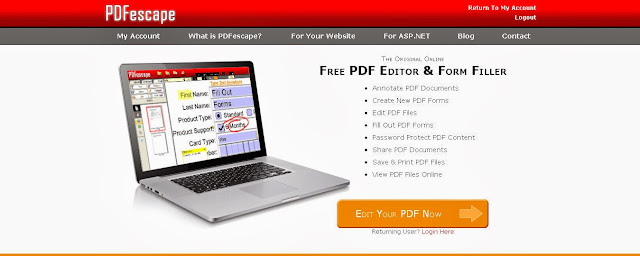
  • Open the official website of the Pdfescape here.
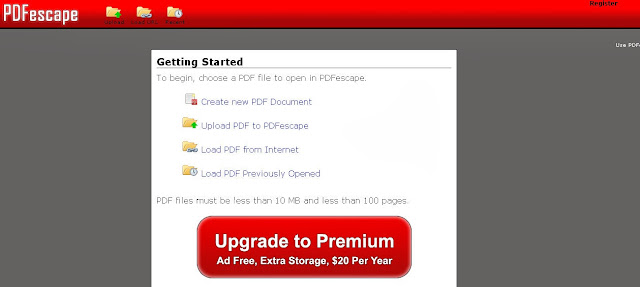
Click on Edit Your PDF Now. It will direct you to the options page. 
  • Click on Upload PDF to PDF escape. This will allow you to edit an existing PDF file in your system. Let me show an example.
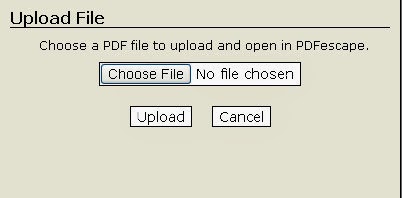
  • Here, click on Choose File and select any PDF file which you want to edit.
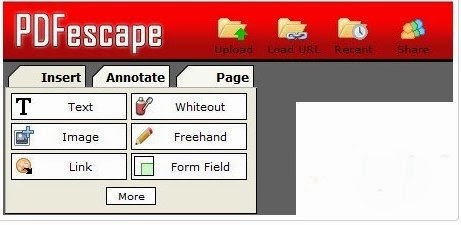
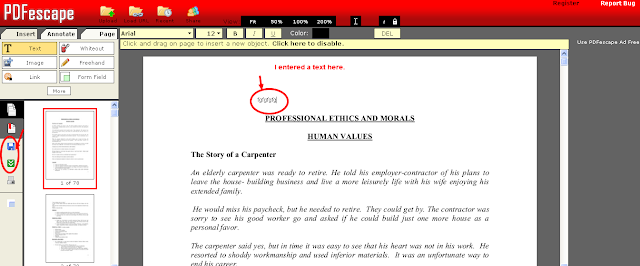
  • Here there are options, where you can select the stream to be edited. I selected text in the options given. 
Here is just a sample text I gave in the PDF, in order to edit it. I just placed the cursor on the file and typed a text. In order to save the edited file, I clicked on the save document option in the left side as directed in the picture.
This website is rated as one of the best, which provides almost all the tools to edit any PDF file. It is easy to edit and also a fast process.

2.Pdffiller : 

PDF filler is another website which provides large streams of editing. It has all the features same as Pdfescape. It also has signature option where you can add your signature on the edited or created PDF files. This process many not be completely accurate as Pdfescape but is efficient enough in working and saving the document.
Here you can find options such as View,Font,Signature and picture etc, and many more to editing options.
Check: How to Create Wifi Hotspot in Windows PC

3. PDFZEN: 

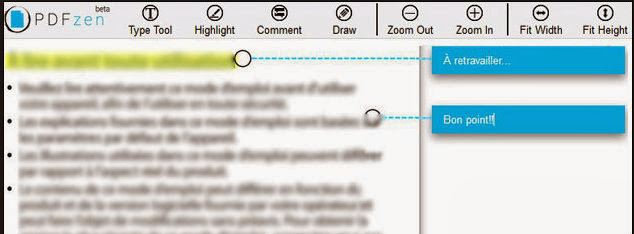
Pdfzen is a website which is very efficient, perfect and a quick process to edit the PDF files online. It has wide range of options to edit the PDF files. It reviews everything to edit and gives best results. PDFZEN is best in terms of creating a PDF file. This process is quick and gives best results.

4. Cutepdf editor: 

Cutepdf editor works similar to other PDF editors as I mentioned earlier. The attractive feature of this is it provides security to the PDF files you edit or create. It also provides wide range of editing options. It also has the option of Delete Pages, where as part of editing, you can delete any pages which you would not want in the PDF file.In the Cutepdf editor, you also has an option of merging multiple PDF files. The only draw back of this website is it takes time to save the documents.

5.FillAnyPDF: 

FillAnyPDF is a website where you fill it out, sign, and send forms, all online!
No software is needed. Any PDF (or MS Word) form can be used, even if it’s not “interactive”, so you can get started right away. You can also invite people or groups to fill out your forms and track the results without forcing them to download, print, scan or fax! Anyone that fills out forms or collects signatures and filled out forms from others will find FillAnyPDF.com to be a valuable time-saving resource.
From the above five PDF editing websites available online, I would say pdfescape and PDFZEN are the most efficient and accurate websites, which help you out to save documents and create new PDFs with no efforts.

By ANAND GAUR

How to Create My Own Animated GIFs Online – 5 Best Ways

GIF stands for Graphics Interchange Format. Well normally you have seen many times moving images if you thing they are videos then you are wrong!! Here in this article we explained what are GIFs actually and how to create them online easily.

What Is The Concept Behind GIFs ? 

Graphics Interchange Format is a technique in which images are compressed to lessen their size without compromising the quality of the images. This technique of compressing the images was first patented in 1985.

How To Create Your Own GIFs : 

There are numerous way to create your own GIFs, but here are some selected few which are simple and efficient ways to make your own GIF online.

1.Make a Gif:

One of my favorite option available on internet. Make a Gif has a very user friendly interface and you are just a 2-3 steps away from making your Gif.
Using Make a Gif you can select images like around 10 images to create your Gif. Morevover Make a Gif allows you to create Gif directly from a YouTube Url.
Limitations I can say is,the image you wish to upload should be less than 2 MB.

2.IMGFlip:

Just  another option for you to create you favorite Gif. ImgFlip allows you to directly create Gifs from the existing videos or you can share a link of video from interet as well.
  • ImgFlip provides a wide option for customizing you GIFs.You can specify the speed,size,FPS( frame per second)etc.You can download you Gif once you’ve done with everything for free .
  • You can directly add the video url from any website.All the popular format like – flv, avi, mov, mp4, mpg, mpeg, wmv, 3gp of videos are supported by IMG Flip.
  • Basically,you can create videos upto 70 MB , but IMG Flip allows videos of size 100 MB. I think the free version will also do if you want to convert a video in Gif.
  • So overall, IMG Flip is also a great option for you to create your own Gifs.

3.Gif Maker:

Gif Maker is another online portal which helps you create awesome Gifs without giving a single penny. One I like about Gif Maker is,it does not require any kind of registration.
So as shown in the image, it comes with a control panel where you can customize your Gifs accordingly.
  • Main features we can see here is – The size of the video ( Canvas or Frame ), the speed of the animation,also you can directly give a url of any video from internet.
  • Once you have created your Gif, you can download it. The image format supported are – .png , .jpg or .gif .
  • Gif Maker is good in all sense but the size of the image you are uploading should be less then 2 MB , pretty less .
  • Gif Maker is so user friendly that even a non technical person can use it and create his/her own Gifs.
So , if you want to create a Gif of small size images, Gif Maker comes handy.

4.Gickr:

My favorite Gif maker as it can create Gifs of images ranging from kb to mb.Size of the images is not the issue for Gickr.
  • If you are using Flickr,the Gickr will be the best option as you. This online portal allows you to directly grab images from Flickr or upload from your computer.
  • Just like other option shared here,Gickr also enables converting the You Tube videos into your favorite Gifs. You can add at the max 10 images for creating funny and flashy Gifs.
  • Once you have done with it you can download it and use it anywhere you want.Gickr is good the customization option are less as compared to IMG Flip. You can also control the size and speed of the images and videos.

5.Picasion:

One of the most widely used option to create Gifs online.Picasion gives lot of option to choose images from.You can select from Flickr, your picasa account or directly from your system.
The biggest advantage is, Picasion gets connected to your webcam and hence you can just take click or make video and it automatically gets uploaded to Picasion( Obviously you internet connection should be enabled ).
Picasion and Gickr mostly have the same features. Picasion also accepts 10 images of variable sizes. You just have the control of speed and size of your Gif that you are creating.
When you are in hurry and just need a Gifs , Picasion wiil be the quick solution for you.

Conclusion :

So next time you want to create a banner or want to create some GIFs our own to be placed on your website don’t forget to refer this article.

By ANAND GAUR

Saturday, 8 November 2014

Check who used your PC in your Absence!

Many times some people log into our PC and check our data and other useful information without our permission, in today’s time privacy is everything for us, we don’t want  anybody to access our PC without our permission. If you want to know the details that when your PC was accessed, then you are lucky because window records every logs of our PC.
We are going to show you the way to know who access your PC in your Absence, just follow the below steps.

Check who use your PC in your Absence? – Procedure

1)     First press Window key + R or go to Start > Run 2)     Now type CMD and press Enter to open the command prompt
who use your pc
3)     A command prompt window will open 4)     Now type eventvwr.msc and press enter
who use your pc
5)     Wait for a few seconds 6)     After that Event viewer window will open
who use your pc
7)     The event viewer window will show you the Detail logs of your PC, It stores Three types of log files
  • 1)     Application
  • 2)      Security
  • 3)     System
All logs are Archived and Reviewed, We are using System Log to fulfil our purpose 8)     Click on Windows log and select System log
who use your pc
9)     This will show you all the detail of your PC which happened recently That’s all after doing above steps you will surely get the detailed report of your PC. If you will find any problem on this post (Check who use your PC in your Absence?) then let me know in below commenting.
By ANAND GAUR

How to access / open blocked sites at office, college, school ?

Open Blocked Sites in  office, college, school are our Topic, Many times when we are in our school, college or at the office trying to open some social networking sites (Facebook, Google+, Twitter) or some downloading sites (Torrent, Songs) in free time, but unfortunately that websites are blocked by the administration, I know it sucks and we are trying to open that site again and again but at last we did not get anything, their are many ways to open blocked websites on PC/ Laptop without spending money. 
To access / open  blocked sites at college, office, school, we are going to show you the some different easiest method, by using below method you can easily assess blocked siteswithout paying anything.
open access blocked sites

Top methods to open / access blocked sites

1) How to Open blocked sites using their IP address instead of Website URL

Generally, administrators block the websites using their Website URL (Domain name), means they create the Black list of those websites which they want to block on their server, they simply put the website on that blacklist file and whenever any person trying to open any website on that server, first server checks the domain name in  the blacklist file if the name is not found in that file then the website will open and if the website domain name was found in the blacklist file than the website will not open on that server.
For the solution of this problem you have to use the IP address of the site instead of website URL, Follow the below steps to find a websites IP address.
  • Go to Start menu of your PC and select Run
  • Now type CMD and press enter
open access blocked sites
  • Type ping website name (For example: ping www.facebook.com)
  • After entering the above command, the command prompt will show you the IP address of entered website
open access blocked sites
  • Simply enter that IP address in your web browser and enjoy the access of blocked websites.

2) How to Access / Open Blocked sites using URL shorten service

As I said in above method administrator is creating one Black list of websites and put that file on server, you can use the access that blocked website using the IP address of blocked website but many times Command Prompt is also blocked in school, college, offices. So the URL shortens services helps you to open blocked websites on your PC. Follow the below procedure to create URL Shorten of the blocked website.
  • First of all open any one website URL shorten service from below list
    http://goo.gl
    https://bitly.com
  • Open any one website from the above link and put the blocked website name on URL shorten box
  • Click on Shorten URL
  • After that you will get a short URL of your entered website
    For example short URL of facebook.com is: http://goo.gl/uLkIJj
  • Now simply copy the Short URL and Paste It in your web browser
open access blocked sites
  • Now you can easily open blocked sites in your office, college or at school

3) How to Access / Open blocked sites using Proxy server in a web browser

You can also access the blocked website using a proxy server in your web browser,  proxy surfing is a simple method which uses to access blocked sites, though it’s proxy server, you have made some few changes in your web browser settings and add the desired website name in it. Follow the below procedure.
  • Open Google Chrome browser
  • Click on Settings > Advance settings >
  • Now select ‘Show advance settings ’
  • Select ‘Change proxy setting’
  • Go to connection tab and select LAN settings
  • Now checkmark on ‘Use Proxy Server for your LAN’
  • After that, enter the website name (Which you want to access) in the address field
  • Enter port number is: 80
  • Click on OK button
open access blocked sites
  • Now type the website name in the web browser address bar
  • And enjoy the accessibility of the blocked website in Google Chrome browser

4)How to Access, Open Blocked sites using Proxy sites

There are lots of proxy sites available on the internet which allows you to access the blocked website on your PC without installing any software and without changing the setting of your web browser etc.
Proxy site trick for open / access blocked sites are very and popular, it is very simple and easy method to access blocked websites in your school, colleges or at the office. I am listing some popular proxy site which allows you to access blocked websites easily.
  • Hidemyass.com
  • Anonymouse.org
  • Anonymizer.com
  • Ultrareach.net
  • Theproxybay.com
There are lots of other proxy websites are available in internet you can simply Google it and you ll get more proxy sites.
5) How to Open / Access Blocked sites using TOR Browser
TOR is a web browser which allows you to open / access blocked websites on your PC, It is the easiest method to open the blocked websites, simply install the TOR web browser and access the sites without using any IP address, Proxy sites, CMD etc.

6) How to Access / Open Blocked sites using Google Translator

This is also an amazing technique to open blocked websites in server, you can easily convert the web page into another language and access them easily, these websites allow you to access the website in their webpage in Translated language easily. You just have to double translate the website in  Google Translator which you want to access.

7) How to Access / Open Blocked sites using Way back machine.

Way back machine is nothing but an internet archive which keeps record of popular websites, means it keeps the all past record of website. If you open the latest version of the website then it shows the error like the website is blocked.
open access blocked sites
Simply go to below the way back machine and enter the desired website name and access the website.

8) How to Access / Open Blocked sites using Hola extension

You can access the blocked sites using Hola extension in your web browser, Hola is a web browser extension which allows you to access the restricted websites on your PC. It is absolutely free service. Hola extension for available for all major web browsers.

9) How to Open Blocked sites using Decimal codes

As I said in above method we can access the website using IP address and URL shorten, there is one more method like this. You can also access the blocked websites using decimal codes, simply convert the website domain into their decimal code and enter that code into your web browser to access the restricted websites. There are many tools available on the internet on to convert the domain id into decimal code, but the most popular tool is Allredroster.com.
open access blocked sites

10) How to Open Blocked sites using UltraSoft Tool

UltraSoft software allows you to access any type of restricted website on the server, UltraSoft is most popular and powerful tool to access the restricted or blocked website into your school, college or at the offices. I am also using this tool in my college :P, follow the below steps to use the UltraSoft tool.
  • Download UltraSoft tool By clicking here
  • Now unzip the downloaded file
  • Now select the UltraSoft file and run it
  • One window will open, simply minimize it
open access blocked sites
  • That’s it
  • Now go to your web browser and enjoy the access of restricted websites.

Hope you like our article “How to open blocked website in Office, College & School”, There are some more methods available to open blocked site in our upcoming articles we will also post about, open blocked sites without proxyopen blocked sites on androidopen blocked sites softwareopen blocked sites on iphonefree software to open blocked sites. So stay sonnected with TechyPassion. If you have any Doubt or query related to open or access block sites then feel free to ask your doubt using below comment box. :)
By ANAND GAUR

Track Lost Android devices using Android Device Manager

Google recently announced Android Device Manager is now officially live. Using this service Android OS users can easily track down their lost or Stolen Android phones, Tablets using a new Google’s Android device manager.
Android Device Manager Algorithm will automatically hit your android device without you having to do a setup for it. If you don’t have it yet, you will soon. The web interface to locate and track your devices is also now available on google.com/android/devicemanager. ADM service is available for all Android 2.2 and above devices.

How to Track Android devices using Android Device Manager

First of all you have to verify that the Android device manager is enabled on your device for this follow the below steps:
1) Go to the Settings menu then select security.
2) Here you will find a ‘Device administrators setting’select it
3) After that you will see the ‘Android Device Manager’ option,  just go and enable it by selecting a checkbox
4) After enabling this feature, you will easily see your phone on the web.
You will now track its location by Google map, Ring the device at full volume for five minutes even if your device is in silent mode (This feature is very useful for you when you want to search your phone in your home) and you can also erase all the data from your device using Android device manager. ADM interface also allows you to track one or more devices using one account.
Android Device Manager
Note – To enable the erase data option on your android device, you should to enable the factory reset on your phone through the ‘Google Settings’ app on your device and clicking on the check box with in Android Device Manager And for tracking your phone service you have to enable Google location settings. You can enable these settings from the ‘Location’ menu from the Google Settings app.

Main features of Android Device Manager

1)    Ring device 

You can ring the device at full volume for five minutes even if your device is in silent mode ,This feature is very useful for you when you want to search your phone in your home.
Android Device Manager

2)    Erase all data 

You can easily erase all your data from your device using ADM. This feature is useful when  your device has been stolen .
Android Device Manager
Hope you like our article on Google Track device manager, if you have any query related to above post then let me know by commenting below.
By ANAND GAUR

Thursday, 6 November 2014

WHATSAPP HACKING TRICKS

Did your friend always try to hide something from you?

Did you ever wanted to know whats going on through his WhatsApp account?

 Do you have access to his phone bu can't open his WhatsApp because of security or anything else?

 Here i have solution for this too! Once you get the offline database of WhatsApp application, you can read their messages. So follow these steps.


1. Go to the MicroSD card section, click on the WhatsApp and later on on the Database option. Here you will find two files namely, -msgstore-yyyy..dd..db.crypt -msgstore.db.crypt

2. Just send these files from your friend's mobile to your with Bluetooth or WiFi.

3. Place these files on directory where your WhatsApp has database files. Backup your files and replace them with new one.

4. Done, now read the messages through WhatsApp.

..............enjoy hacking............

By ANAND GAUR